
This guide requires a user with the Restricted Editor role or higher. If you don't have this capability, you will NOT be able to make the necessary changes.

Group editors are not yet supported, though it is under development.
As a Drupal editor, you can preview unpublished components directly on the page without publishing them. This lets you check layout, order, and copy in context as it will appear to visitors before republishing.
Enabling the preview toggle
- Log in to Drupal and navigate to the page you’re working on (for example, the Convocation page).
- In the Drupal admin toolbar at the top of the page, click “Preview unpublished components.”
- The page reloads. Unpublished components are now visible, each clearly marked as “Unpublished Component” with a distinct border and label.
- To turn preview off, click the link again. The page reloads and returns to the public-facing view.
Note: Enabling preview applies across the entire site, not just to a specific page. You will continue to see hidden components on every page you visit until you turn off this option.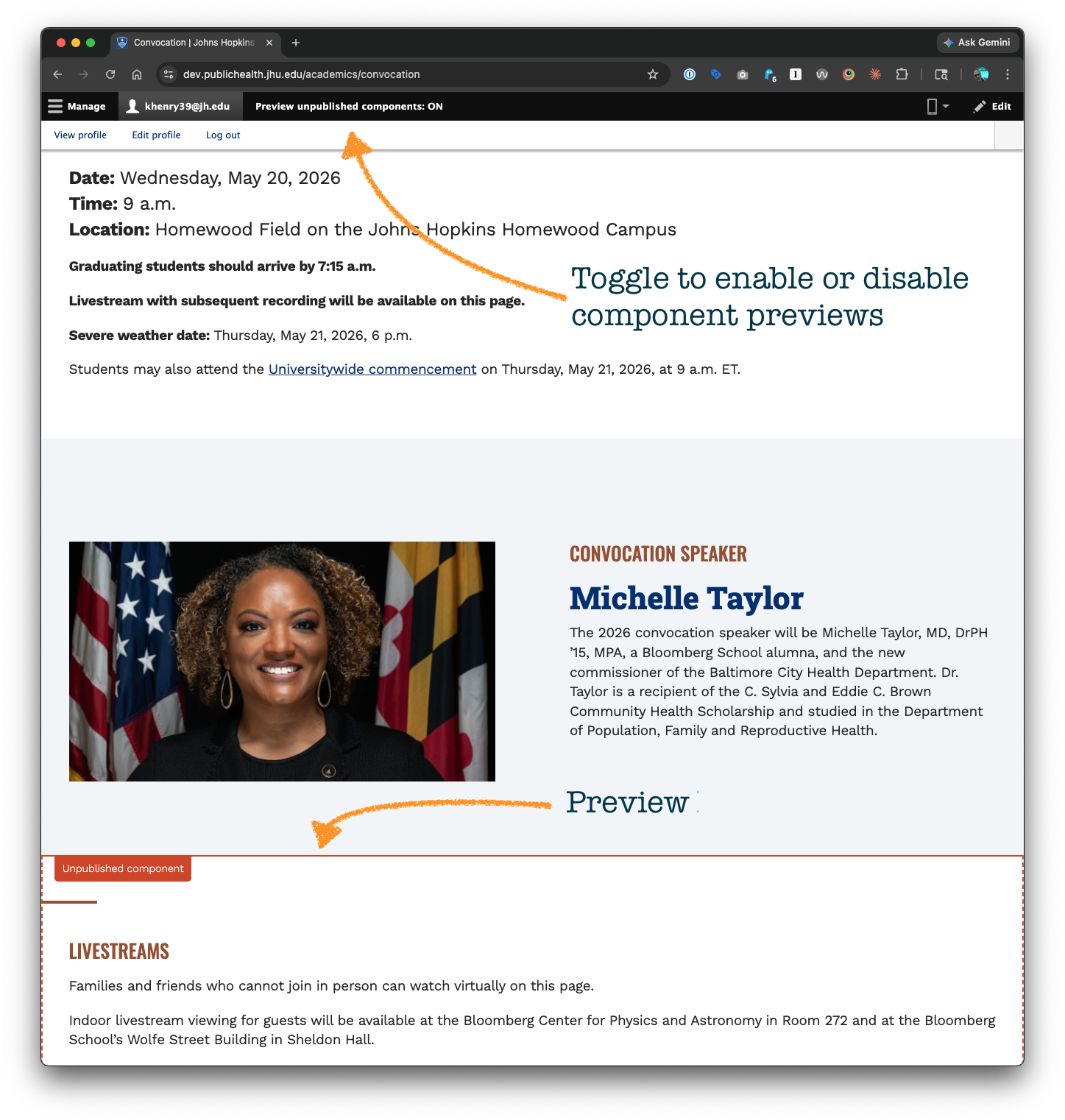
Things to remember
- Preview does not publish. Toggling preview on or off never changes the published/unpublished status of any component.
- Public visitors never see unpublished content. Only logged-in users with the correct Drupal roles can see components in preview mode.
- Preview links are separate. If someone outside Drupal needs to review an unpublished page, generate a preview link — don’t share your logged-in session. See Sharing Unpublished Content.
- You can fully interact with previewed components — click links, test buttons, read content — exactly as a visitor would.
- The layout may look slightly different in preview. The “Unpublished” label and border styling can create minor visual differences (small gaps, outlines). These disappear once components are published or the preview is turned off.