See also: How do I edit my Faculty Profile page?
Before You Start
Make sure you have the following before attempting to edit your profile:
- An active JHED within the University system
- An active entry in the Faculty Information System (FIS)
- A public profile on PublicHealth.JHU.edu
If you believe you should have a profile but it hasn’t appeared, see If Your Profile Is Missing or Not Appearing for common causes and who to contact.
Access your profile data on PublicHealth.JHU.edu
Step 1: Log In
- Go to PublicHealth.JHU.edu/user/login
- Click the “Login with your JHED” button. You’ll be routed through the University-wide JHED authentication process.
- If you don’t have a JHED ID or are unsure of yours, contact your department’s administrator.
Step 2: Access Your Profile
Once logged in, look for the “Edit Faculty Profile” tab on your account page. Clicking it will take you directly to your profile editor, where you can update your bio, research interests, publications, profile photo, and Power Sentence. See the sections below for guidance on specific fields.
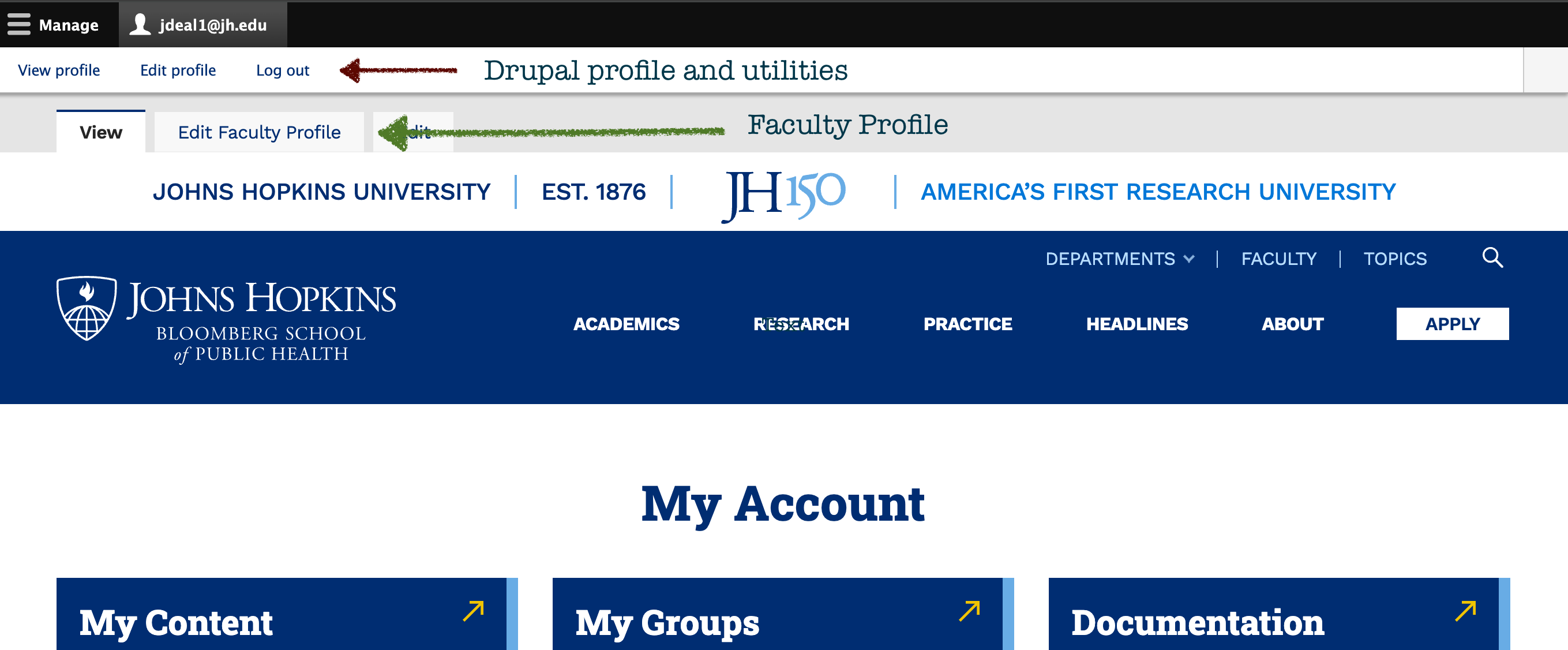
NOTE
If, after logging in, you receive the message "There is no faculty associated with the current user" when clicking "Edit Faculty Profile" it means your profile has not been created, or your JHED has not been correctly linked to the profile.

Please email Isis Conroy-Tabrizi (itabriz1@jhu.edu) in the Office of Academic Affairs. You will not be able to access your entry until this is corrected.

See also: Troubleshooting Faculty Profiles
Once you have access, most items are straightforward to update. You can easily add:
- Center & Institute Affiliations
- Overview
- Honors & Awards
- Research Interests
- Additional links
- Brief list of publications
- PubMed Publication URL
Any of the above updates can be made and published independently by faculty or faculty editors. However, a few items require additional oversight because of their more visible and widespread use on PublicHealth.JHU.edu. Both the profile photo and the power sentence undergo further review before publishing. Details on those follow.
Update Profile Photo
Upload a photo to be displayed on your profile page. Only profiles with a photo will be included in featured or promotional locations around the site — so adding one increases your visibility.
For best results, upload a .jpg image that is at least 756px wide × 860px tall.
Note on editorial review: Profile photo submissions are reviewed by the editorial team before publishing. Your photo may not appear immediately after upload.
Updating Your Power Sentence
Your Power Sentence is a short statement that appears prominently at the top of your profile to highlight your work and expertise. You now edit your Power Sentence directly in the Drupal CMS, the same way you can edit many other profile fields.
Note on editorial review: Power Sentence edits go through an additional review by the editorial and marketing team before publishing. Your submission may be lightly edited for style, clarity, or consistency with school guidelines.
Tips for creating an effective Power Sentence
Saving & Publishing
When you’re done editing, you have two options at the bottom of the edit page:
- Save as Draft — Saves a working version of your edits without publishing them. Your existing published profile remains live. Come back anytime to continue editing.
- Save as Published — Makes your changes live immediately on PublicHealth.JHU.edu.

Reminder: Images and Power Sentences undergo a separate review process.
Review Unpublished Changes
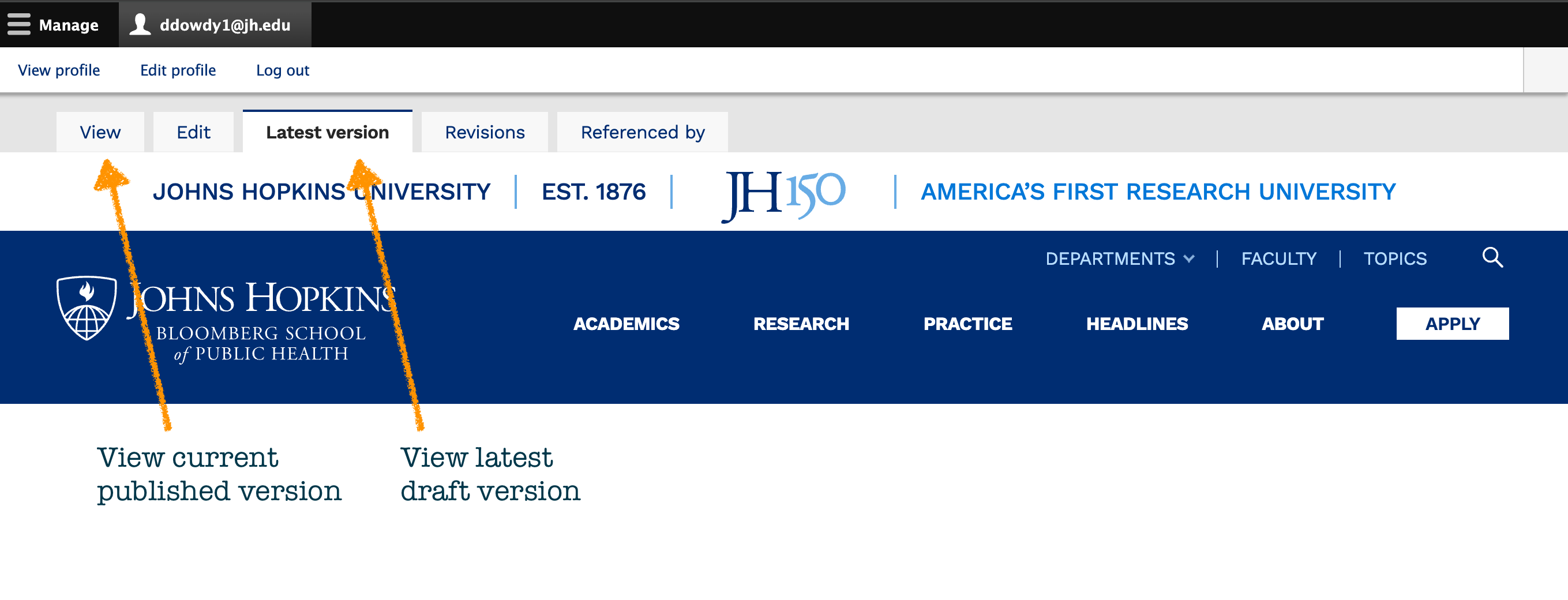
As mentioned, images and power sentences undergo additional editorial review due to their sitewide use and importance. These pending changes can be reviewed by selecting the "Latest Version" tab at the top of the page. This is also how to review any other pending changes before you publish your updated content.
You can access this tab by viewing your profile when logged into Drupal.