
Drupal provides various options for viewing, previewing, and managing revisions of your content. This guide will help you understand these options and how to use them effectively.
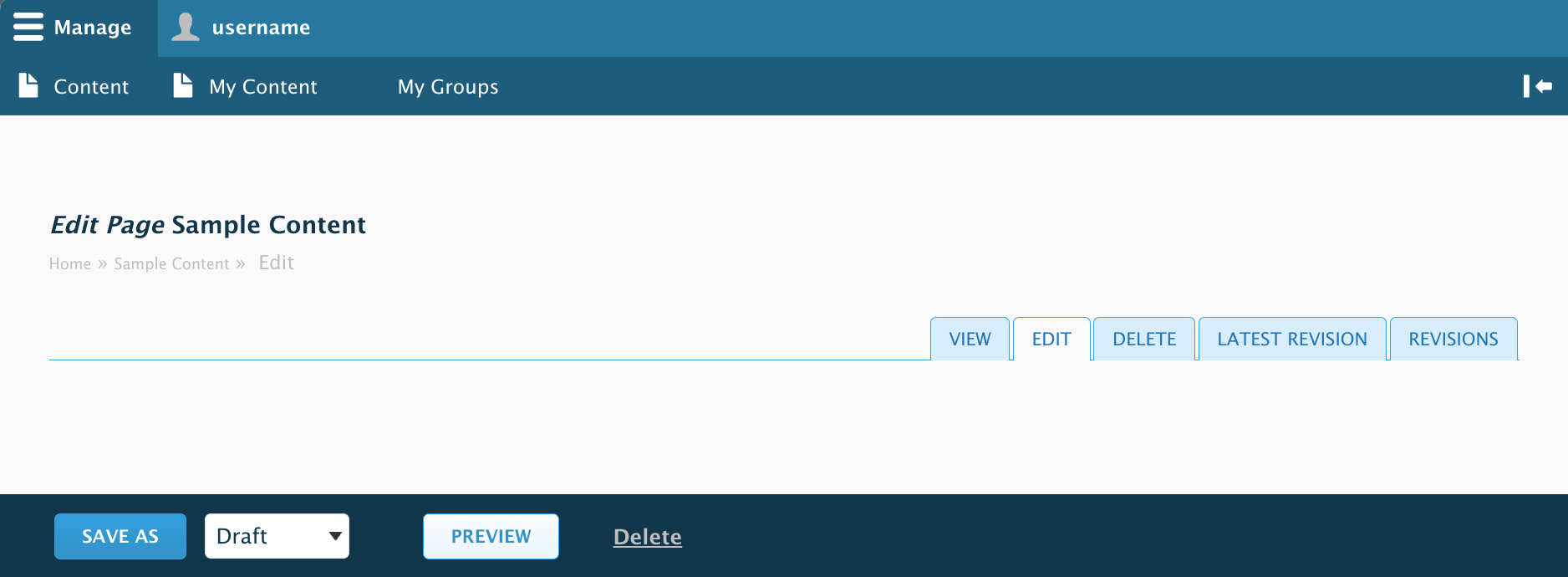
- View tab: Displays the published version as it appears to site visitors.
Unless it has never been published, i.e., new unpublished content will simply display its most recent version. - Preview button: Allows you to see how the content will display before saving. The "Preview" button is at the bottom of the Edit form.
- ⚠️ Note: To go back to edit your content, click the blue button “Back to Content Editing”.
Do NOT use the back button on your browser as your changes will be lost.
- ⚠️ Note: To go back to edit your content, click the blue button “Back to Content Editing”.
- Latest Revision tab: Similar to Preview, it allows you to see how the content will appear after it's been published. Unlike Preview, the Latest Revision will only display saved changes.
- Revisions tab: Versions of the content are kept every time they're saved. This allows you to revisit past versions. This tab allows you to view, compare, and revert changes. Learn more about comparing revisions.
Theming Issues in Groups (Resolved)
Group content would previously have rendering issues when previewing changes or revisions where the color scheme did not match the colors of the group. This was addressed on March 2026 and should no longer be an issue.