
Restricted Editors can only edit Media assets they originally uploaded.
How to Replace Media
Replacing media assets is helpful when updating existing documents or images without breaking existing links.
- Go to Content > Media
- Search for the record of interest and Edit it:

- Use the Replace File section to select the new file
- In most cases, you will likely want to overwrite the original file.
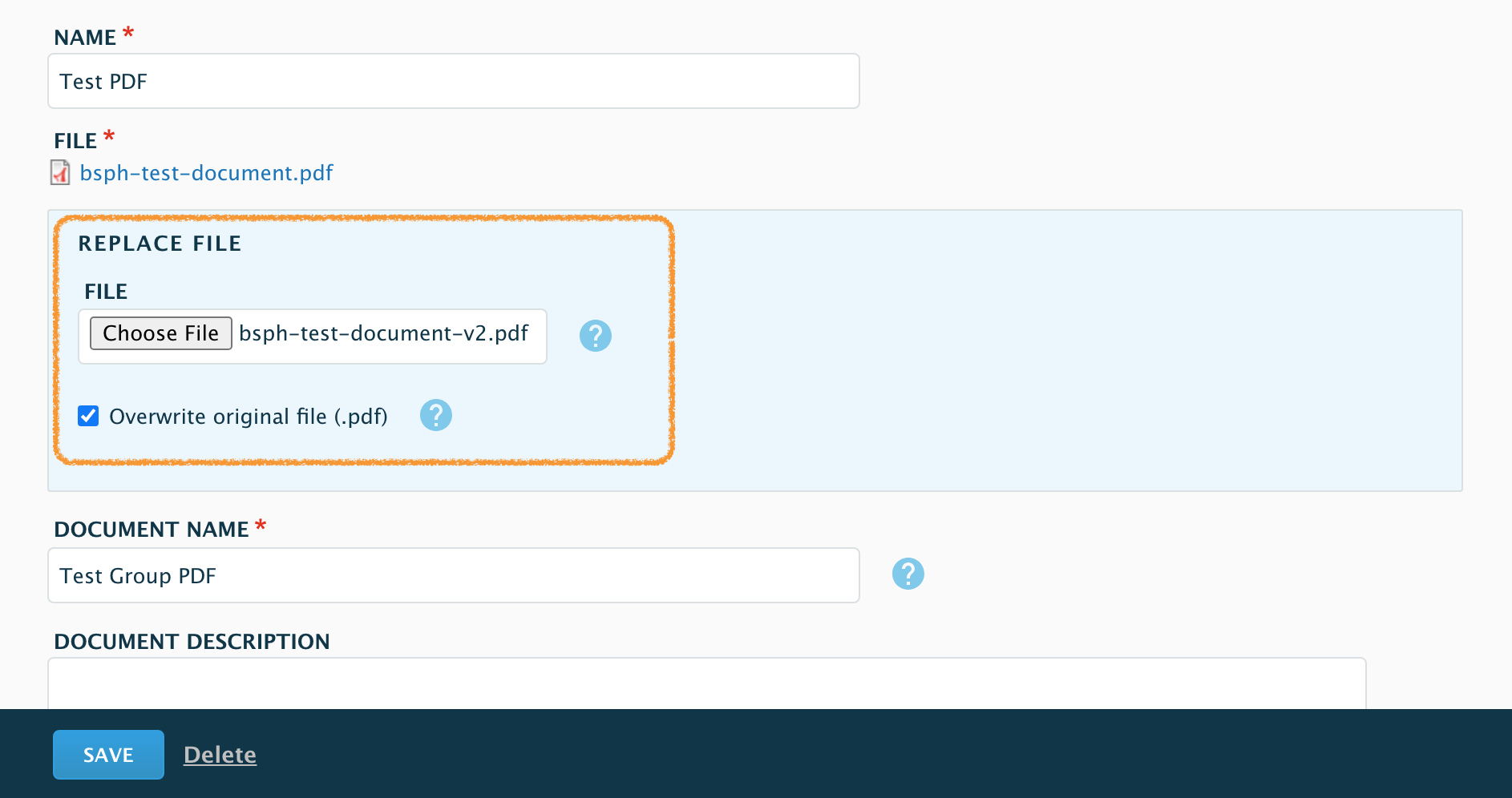
- In most cases, you will likely want to overwrite the original file.
- Save and confirm the new media is loading correctly.
- Done.
Documents are cached by the server. If you're working with a time-sensitive update and the cache persists after 15 minutes, please contact the Web Team.
How to Delete Media
Deleted media cannot be recovered.
It is wise to download a copy to your computer as a backup.

Not all roles can delete files.
- Go to Content > Media
- Search for the record of interest and delete it:

- You will be asked to confirm if you want to delete the associated file. Check this box, and click Delete:
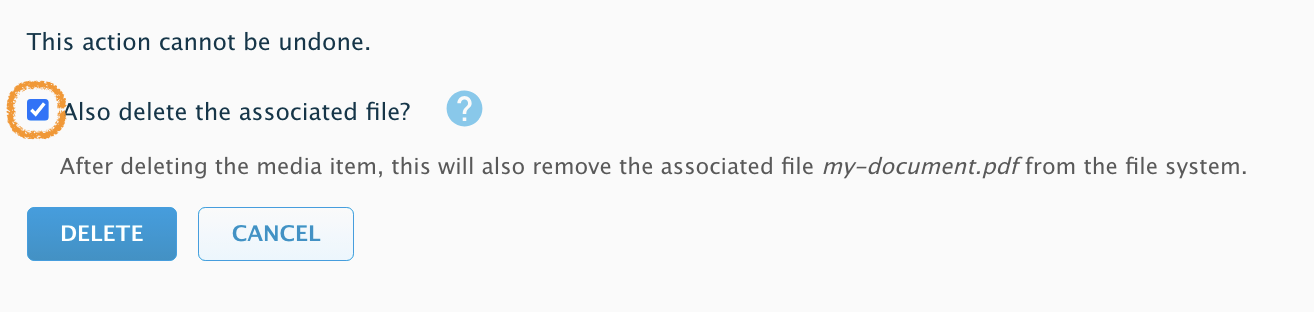
- Done.
Media Usage:
To check media usage, go to /content/Media and edit the media you plan to delete. On the Usage tab, if the media is in use, you'll see where it is used and a link to the node or component. Always verify media usage before deleting.
Working within Groups
While many of the directions above are similar to those described above, there are a few differences for Groups.
- Go to your group>Media
- Search for the record of interest that you want to edit/delete
- Using the operations dropdown, select what you want to do.
Warning: If you intend to delete, the Delete relation only deletes the document from your group, not from Drupal.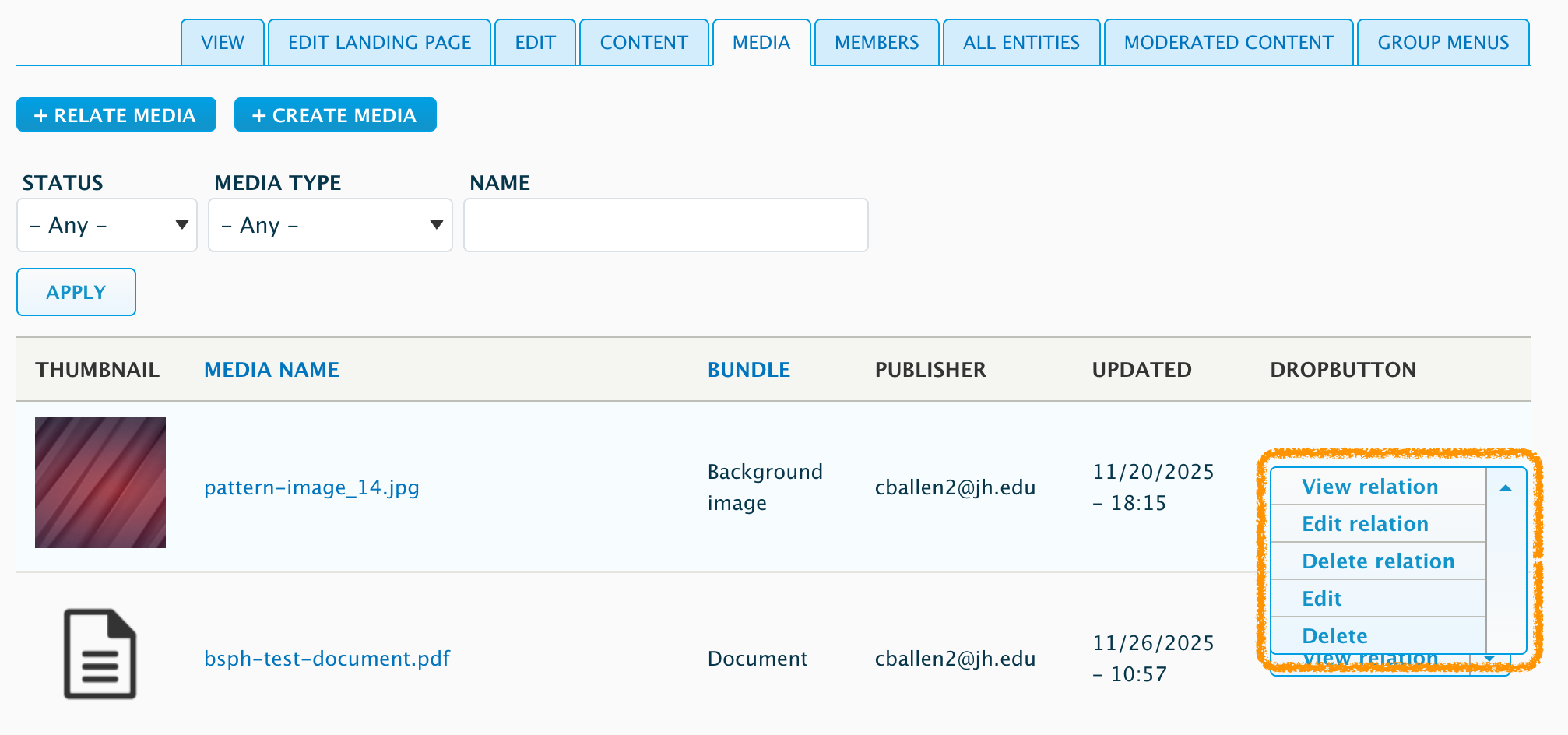
- To edit, select Edit from the dropdown.
See steps 3 and 4 in the Replace Files section above. - To delete, select Delete from the dropdown
You will be asked to confirm and check the box to delete the associated file. - Done
Documents are cached by the server, if you're working with a time sensitive update and the cache persists after 15 minutes, please contact the Web Team.

This approach will NOT work on form submitted content, but form responses get deleted within the form interface. If this is the case, you will need to contact the Web Team.