
Use this process to recreate a Sympa list or other email list in Poppulo by exporting the subscriber list, converting it to CSV, and importing it into Poppulo as a tag
A note about student inclusion in Poppulo
Poppulo can send emails only to students who meet one of the following criteria.
- Any students enrolled in the current or the next two upcoming semesters (e.g., fall, winter, spring)
- Any student not currently enrolled but who has accessed a University system such as JHED or SIS in the past 90 days.
If they do not meet one of these criteria, they will not receive email through Poppulo.
This is particularly important between semesters, when students have not registered for classes.
Before you begin
These requirements are needed to export your Sympa list or import it into a Poppulo tag.
• You must be an owner of the Sympa list
• You must be on campus or connected to VPN
• You must have a Bloomberg School Poppulo account
• A Poppulo tag must already exist
• Contact the Web Team if a tag needs to be created
Exporting your list from Sympa
The following steps will walk you through exporting your list from Sympa.
If you are not exporting from Sympa, you can skip this step.
- Be on campus or VPN
- Go to https://lists.jh.edu
- Log in
- Go to Home> My lists
- Find your listserv(Make sure you are an owner)
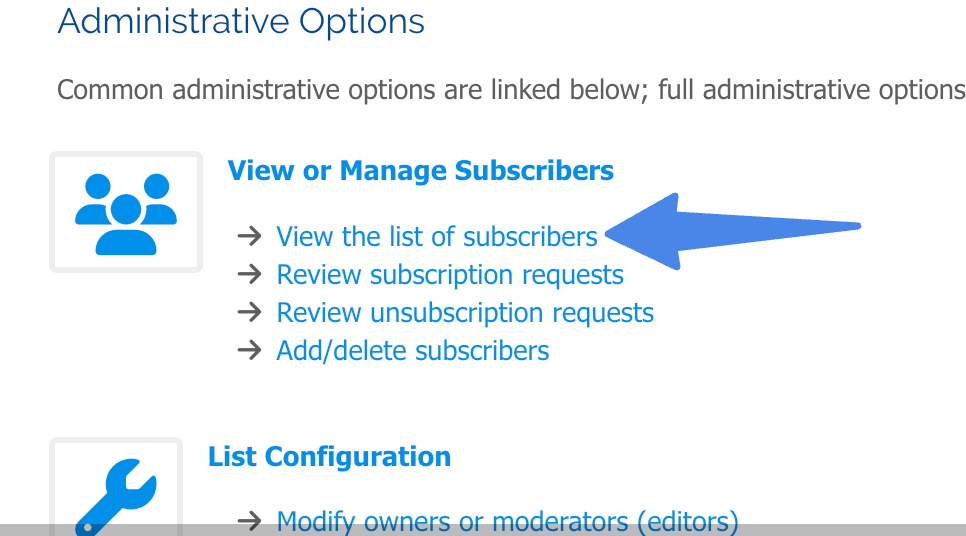
- Click on View the list of subscribers(Under "View or Manage Subscribers")
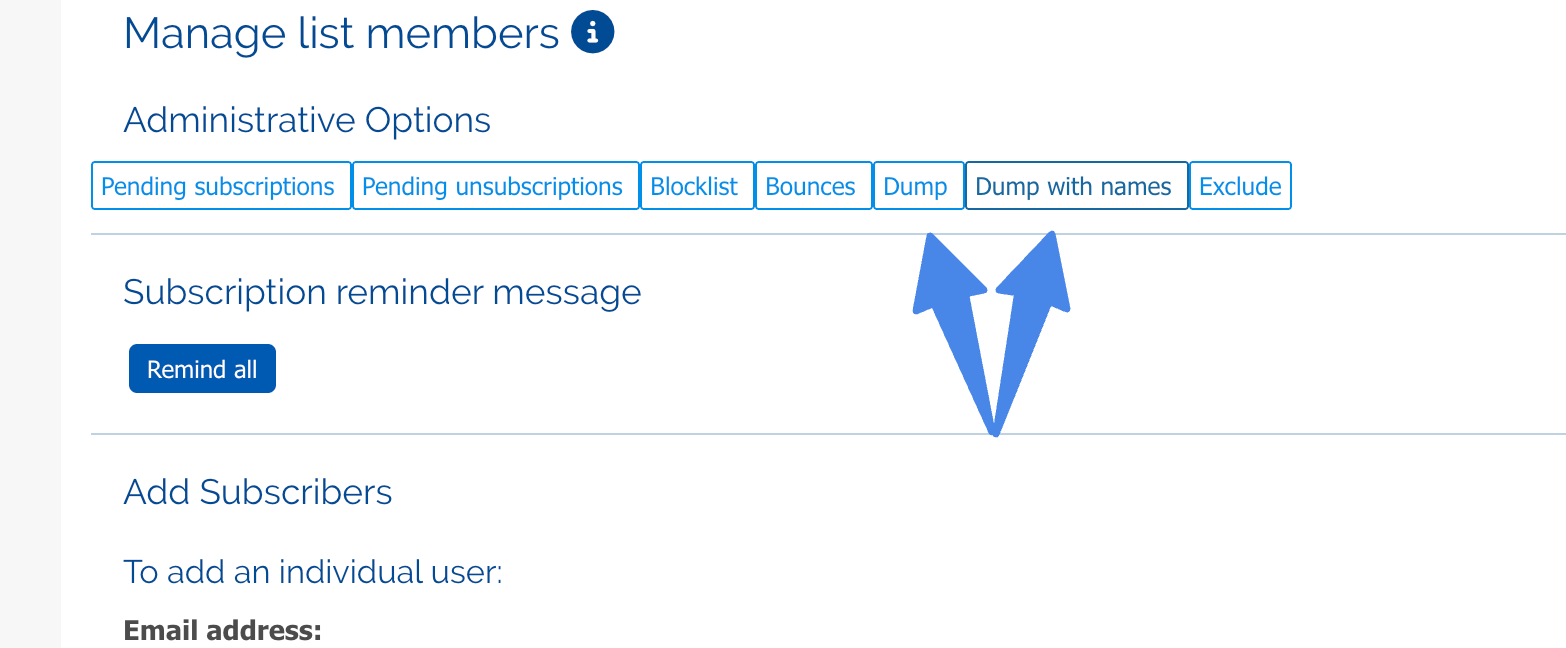
- Click on Dump or Dump with Names
- Save the txt file to your computer
Converting your list into a CSV
- Open the text or xls file with Excel
- Replace @jhu.edu, @jhmi.edu, and any other JHU-branded domain with @jh.edu
- If the subscriber is not already represented by a JHED address, look up the person’s JHED and use jhed@jh.edu
- Go to my.jhu.edu
- Create a new email, search for the person, and grab their JHED from their contact information(you need to see the full contact information). You can find this by right clicking on their name in the to field and go to "Open Outlook contact".
- Service accounts should be removed from the export, because only JHED emails can be imported.
- Save the file using "Save As" to change the format to CSV.
Note: If you import your CSV, but the email is using a custom vanity email and/or a jhsph, jhu or jhmi domain, you will receive errors for those emails. All emails need to use JHED and the jh.edu domain (ex myjhed@jh.edu).
Poppulo Tagging Documention
Please review Poppulo documentation for guidance on tagging.
- Upload to a Tag - how to bulk upload addresses to tag them
- Tag People using Search - guidance on tagging just a few people
- Remove People from a Tag - guidance on removing tags from individual people
NOTE: You cannot send to Saved Searches and Tags in the same email. But you can use Tags within Saved Searches.

If you need to send to multiple recipient groups that include both Saved Searches and Tags, submit a ticket to the Web Team for help.