
Learn how to style multiple components to appear as a single piece of content.
Components are designed with built-in top and bottom spacing to ensure they are visually distinct and easy to read. However, there are times when you may want to combine multiple components together to create a cohesive, flowing visual design.
To achieve this, several of our components include options to reduce spacing.
How it works
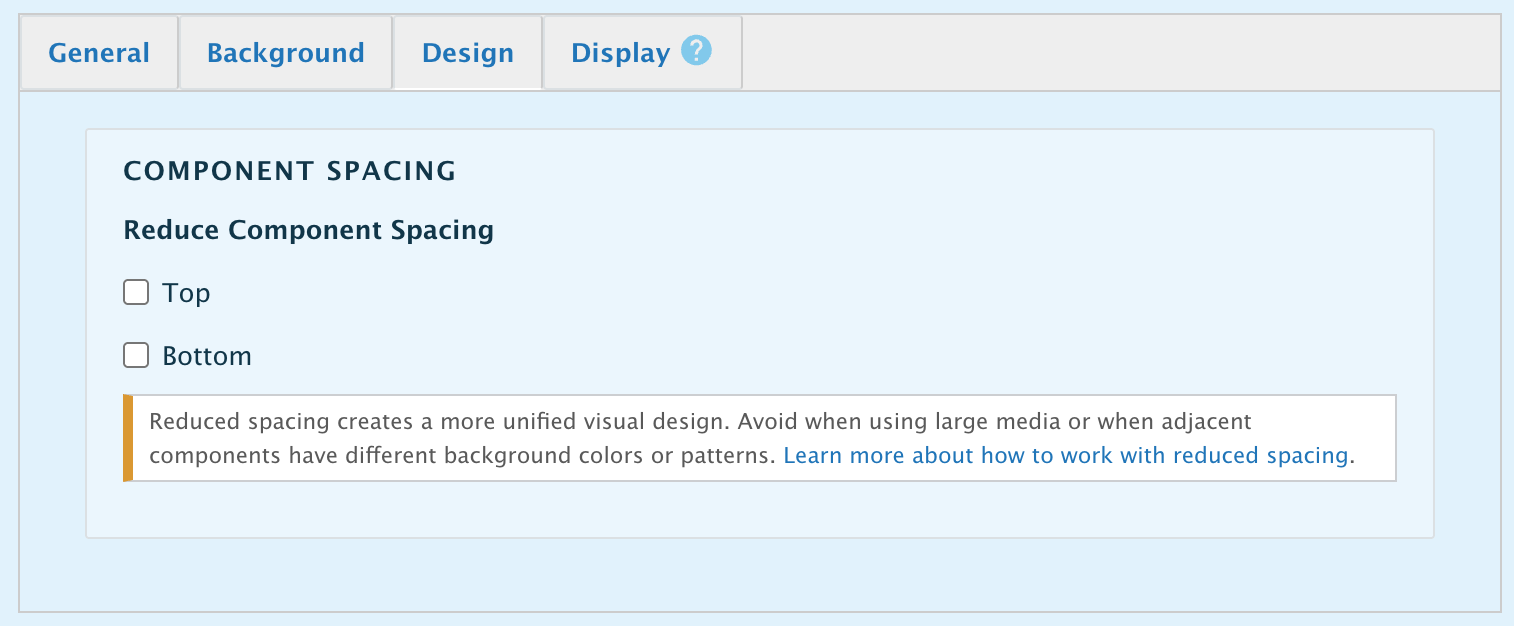
The spacing options are located in the Design tab of supported components. Under the field Reduce Component Spacing, you will see two checkboxes:
- Top
- Bottom
Each checkbox reduces the spacing at the respective chosen side. Checking both options will allow the component to sit flush against the components immediately above and below it.
The screenshot below compares a series of components with normal vs reduced spacing. Notice that the intention here is to create unity between the components, not solely to reduce empty space.

Best Practices and Things to Avoid
Using these options enables creative layouts but requires care to avoid broken designs. Keep the following in mind:
- Don't Overcrowd
Reducing spacing unnecessarily can result is designs that feel overcrowded. Use it only when needed. - Use a consistent background color
Unified components should share the same background color to avoid jarring visual breaks. - Be wary of background images across components
Though they appear unified, these elements remain independent, and background images may behave unexpectedly, causing odd alignments when used across different items. - Avoid large media clashes
Removing padding near large imagery or videos can make the page feel cramped or cause elements to touch awkwardly. - Review after rearranging
Reduced spacing settings remain active even if you move components. Always preview your page after layout changes to ensure the spacing still makes sense. - Accessibility rules still apply
While unified components may appear as a single section, they remain separate structural elements. Ensure heading levels (H2, H3, etc.) follow a logical hierarchy across the combined layout.
Support
This feature was introduced in May 2026, and it's only available in a handful of components, including:
- Text
- Rich Text
- 50-50 Contained
- 75-25 Full Width
- Single Column
- Accordion
- CTA Grid
If you don't see the design option, it is not supported for the component.
If you'd like to see this option supported in another component, please let us know your use case in a ticket so we can better understand your requirements as we consider expanding this option.